

How to Identify Fraudulent IP Addresses in Google Ads

To identify IP addresses associated with invalid Google Ads clicks, you need click-level validation data. TrafficGuard analyses each ad click using more than 200 indicators rather than judging an IP address in isolation. In the TrafficGuard Click Report, you can filter clicks by validation status and see the IP address associated with each invalid click, helping you investigate where invalid traffic is coming from. Google Analytics does not log or store raw IP addresses, so this level of IP-level investigation is not available directly in GA4.
Invalid traffic is not just a minor hindrance. It drains your Google Ads budget, distorts performance metrics and stops your campaigns reaching real prospects. Bots, click farms, competitors and repeat clickers can all generate clicks that cost money without creating genuine opportunities.
But there is a catch. Adding an IP to your exclusion list takes seconds; working out which addresses deserve to be there is where advertisers get stuck. Block the wrong ones and you risk excluding real customers. This guide focuses on that missing step: how to identify suspicious IP addresses and investigate the clicks behind them using TrafficGuard for Google Search, before you exclude a single one.
Why Finding the Right IP Addresses Is the Hard Part
Google Ads lets you exclude up to 500 IP addresses per campaign, but it does not tell you which addresses should be on that list. Neither Google Ads nor Google Analytics exposes the IP addresses behind individual ad clicks, leaving advertisers with limited data to investigate suspicious traffic.
And an IP address alone does not prove fraud. The important part is understanding the behaviour behind it: how often it is clicking, whether those clicks show signs of automation or repeat activity, and whether the traffic is likely to represent genuine prospects. Without that context, you risk missing sources of invalid traffic or blocking legitimate users who happen to share an IP address.
For the mechanics of blocking IPs, including the 500-IP limit, IP ranges and whitelisting, see our guide on how to exclude IP addresses in Google Ads. This guide focuses on the step before that: identifying which IP addresses warrant investigation.
What Makes an IP Address Fraudulent?
Not every unfamiliar IP is a threat, and a single click from an address proves nothing. TrafficGuard weighs several signals together before flagging an address as invalid, and these are the patterns worth looking for in your own data:
No single signal is conclusive, which is why manual review struggles and why layered, behavioural detection is more reliable than a static blocklist. The steps below let you see these flagged addresses directly.
How to Find the IP Addresses Behind Invalid Clicks: Six Steps
TrafficGuard for Google Search analyses clicks in real time and provides the IP address, validation status and other click-level data needed to investigate invalid traffic. Here is how to find the IP addresses associated with clicks TrafficGuard has identified as invalid.
Step 1 – Sign in to TrafficGuard for Search
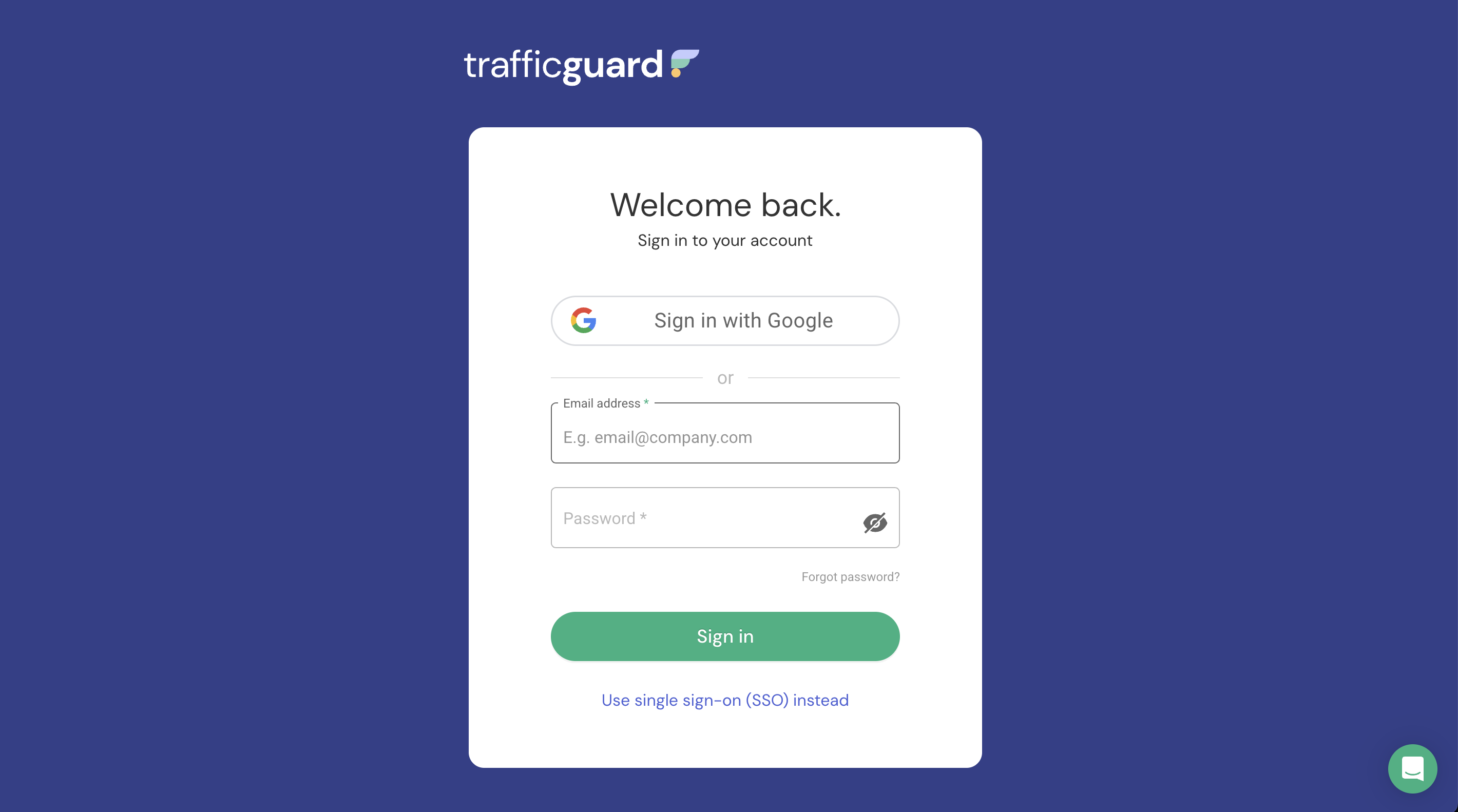
Log in to your existing TrafficGuard dashboard.
Step 2 – Open the Click Report
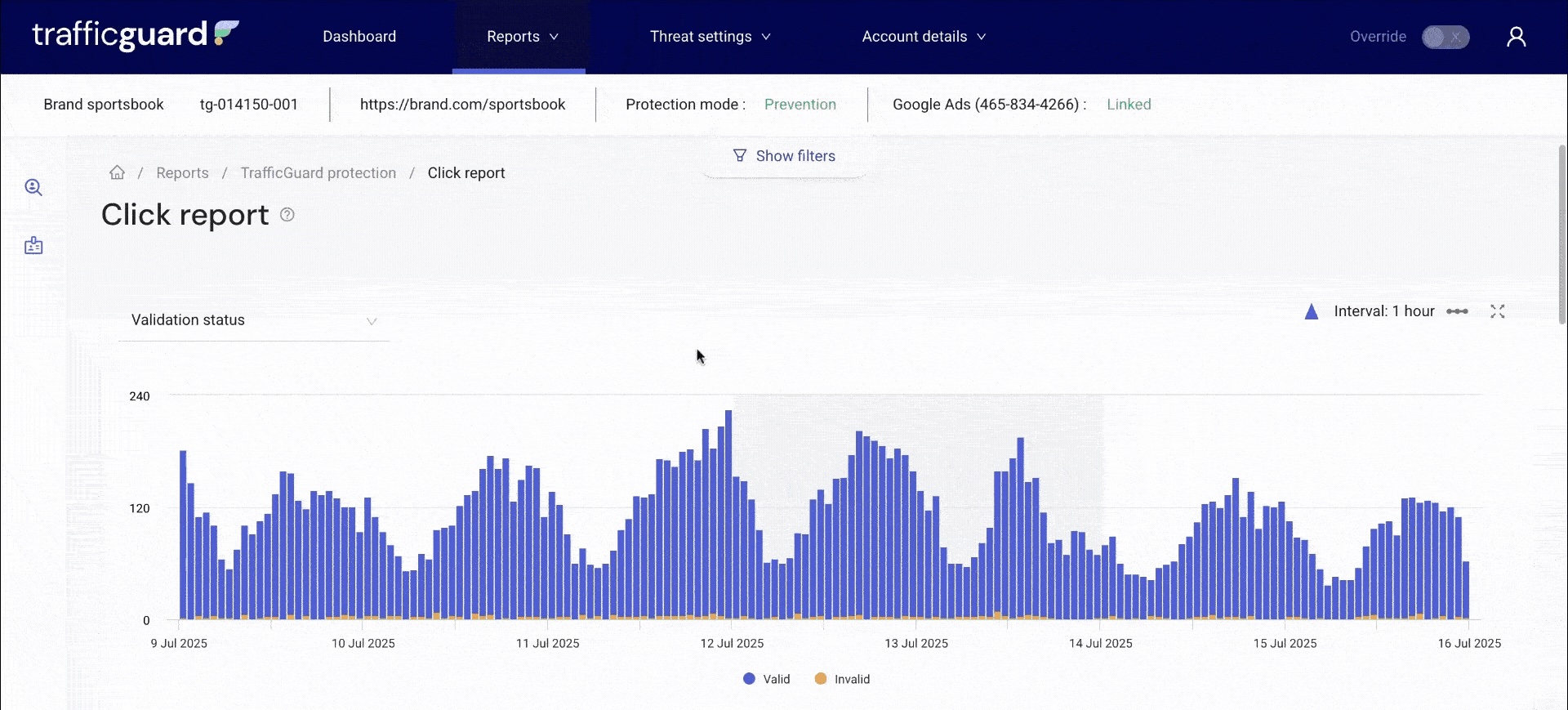
Open the Click Report from the menu at the top of the dashboard. Here you can investigate individual ad clicks, including their IP address, location, source and validation status.
Step 3 – Monitor real-time invalid clicks
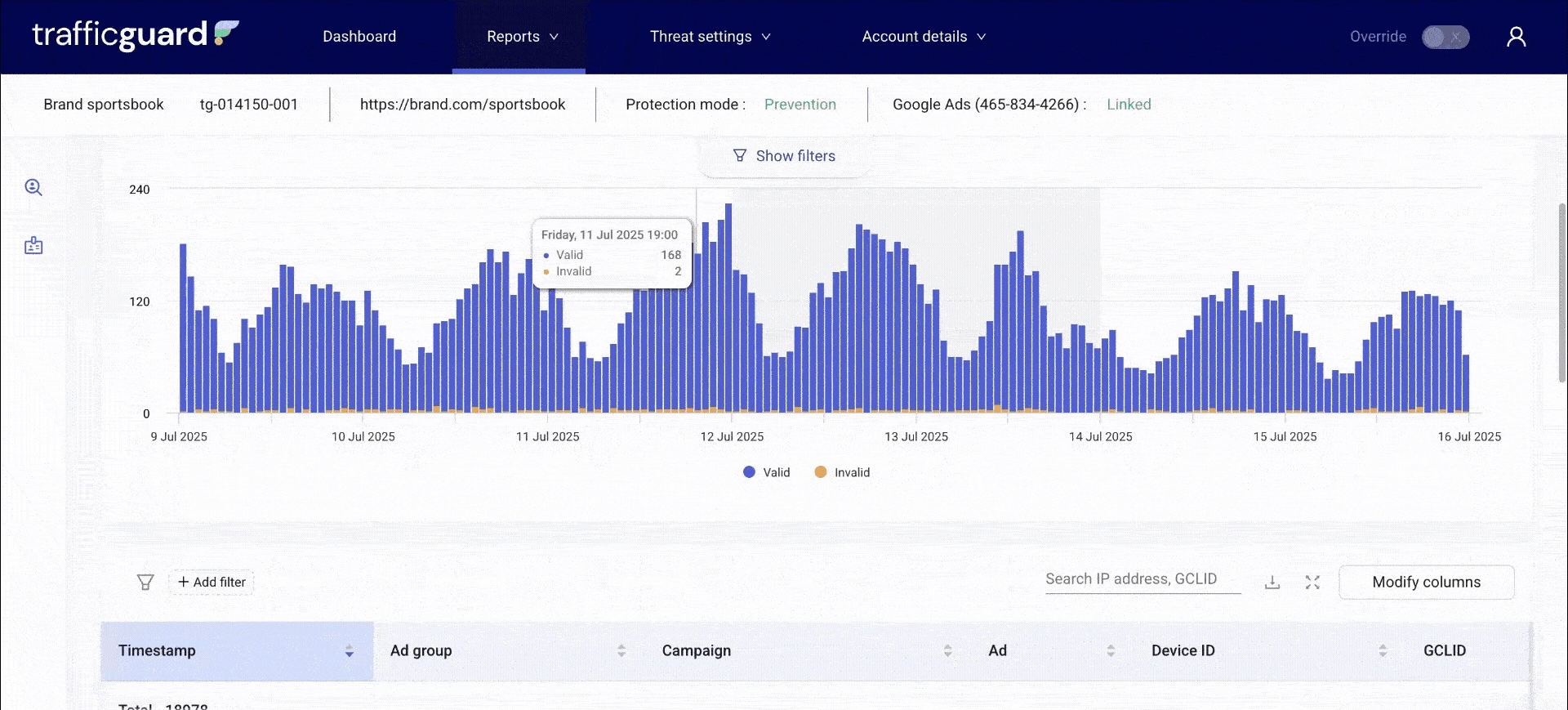
Once your Google Ads account is connected, TrafficGuard starts analysing your traffic instantly. You will see invalid clicks flagged in real time, along with their IPs and the reasons for invalidation.
Step 4 – Apply the 'Invalid' status filter
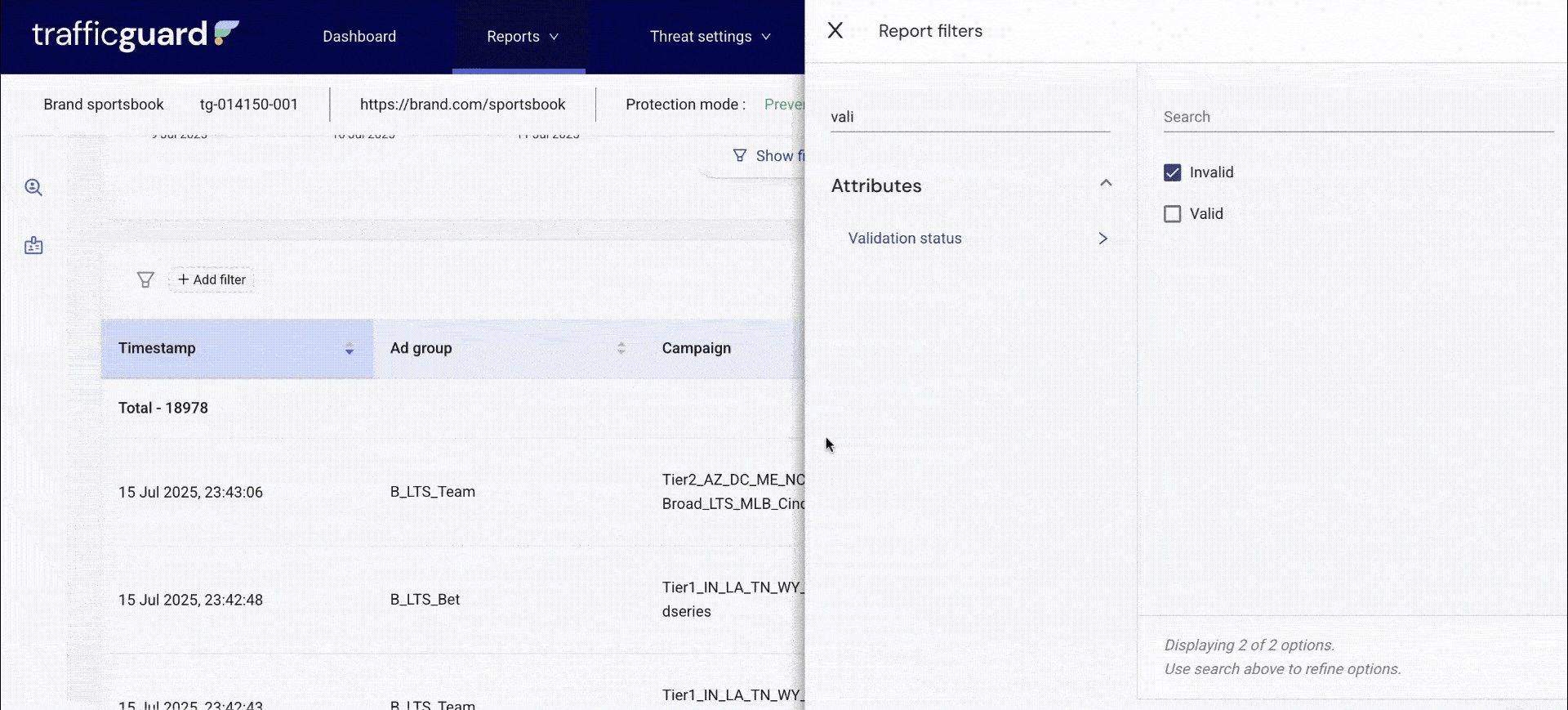
Select + Add Filter, choose Modify filters, then search for Validation status. Select Invalid to isolate clicks that TrafficGuard has identified as invalid.
Step 5 – Export the IP list
Download the filtered Click Report to keep a record of the invalid clicks and their associated IP addresses for further analysis or exclusion.
Step 6 – Block the IPs in Google Ads
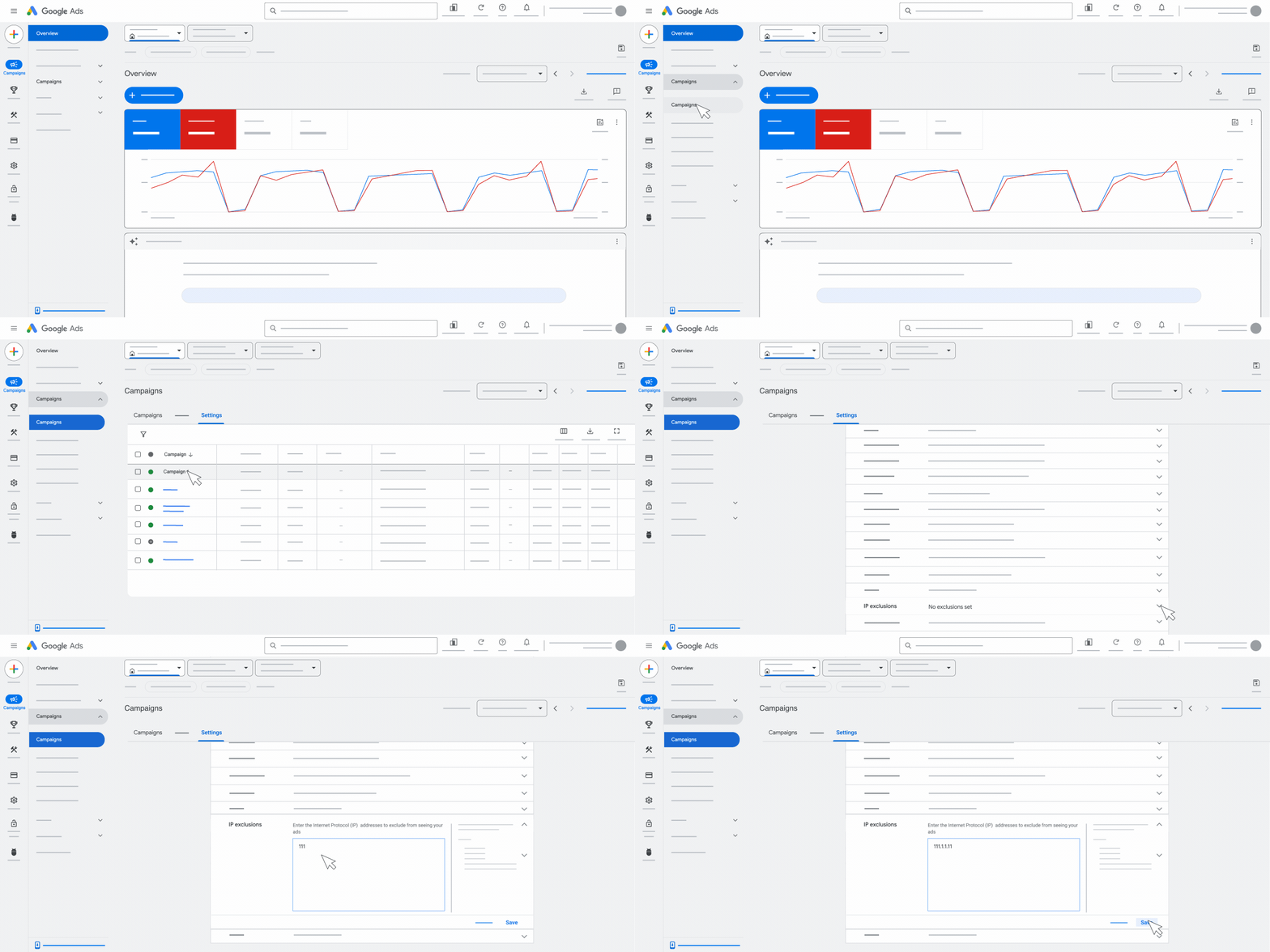
Open your Google Ads account and add the exported IPs to your campaign-level or account-level exclusions. If you decide an IP should be blocked, follow our guide on how to exclude IP addresses in Google Ads, which covers Google Ads exclusions, IP ranges and the 500-IP limit.
About TrafficGuard for Search
TrafficGuard for Search helps advertisers identify and prevent invalid traffic across Google Ads. It analyses clicks in real time, giving you visibility into individual clicks, IP addresses, validation status and the reasons traffic has been flagged as invalid.
Rather than relying on spend spikes or incomplete data to spot suspicious activity, you can see the behaviour behind your clicks and identify bots, click farms, repeat clickers and other sources of wasted spend. TrafficGuard then uses those signals to help prevent invalid traffic before it continues draining your budget and distorting campaign data.
Whether you manage a single Google Ads account or campaigns at scale, TrafficGuard gives you the evidence to understand where invalid traffic is coming from, what it is costing you and how to act on it.
How do I find which IP addresses are clicking my Google Ads?
Google Ads does not provide a click-by-click list of the IP addresses behind your ads. To investigate individual clicks, you need another source of click-level data, such as web server logs or a traffic validation platform. TrafficGuard’s Click Report shows individual clicks alongside their IP address, validation status, location, device and other data, helping you investigate which addresses are associated with invalid traffic.
Can I see Google Ads click IP addresses in Google Analytics 4?
No. GA4 uses IP addresses during data collection for purposes such as deriving location information, but does not make raw IP addresses available in your Analytics reports. If you need to investigate the IP address associated with an individual ad click, you need another source of click-level traffic data.
How can I tell if an IP address is associated with click fraud?
An IP address should not be judged in isolation. Look at the behaviour associated with its clicks, including repeated activity, validation status, location, device, network characteristics and whether the traffic shows signs of genuine engagement. Several suspicious signals occurring together provide much stronger evidence than the IP address alone.
Do repeated clicks from the same IP address always mean click fraud?
No. Multiple users can share the same public IP address, and internet service providers may also reassign or rotate addresses. Repeated clicks from one IP can be a useful warning sign, but you should review the behaviour and other click-level signals before deciding that the traffic is invalid.
What data should I check alongside an IP address?
Check factors such as click frequency, validation status, geographic location, device, network connection and the behaviour associated with each click. Looking at these signals together helps distinguish potentially invalid activity from legitimate users who happen to share or reuse the same IP address.
Can bots and click farms change their IP addresses?
Yes. Invalid traffic does not always come repeatedly from one fixed IP address. Automated traffic can use proxies, VPNs, rotating networks and other techniques that make activity appear to come from different addresses. This is why identifying click fraud purely through a static IP list can miss suspicious behaviour.
What should I do after identifying a suspicious IP address?
Investigate the clicks associated with the address before blocking it. If the evidence shows persistent invalid activity, you can add the IP to your Google Ads exclusions. For the steps, limits and available exclusion settings, see our guide on how to exclude IP addresses in Google Ads.
How does TrafficGuard identify IP addresses associated with invalid clicks?
TrafficGuard analyses each ad click using multiple signals rather than treating the IP address alone as proof of fraud. In the Click Report, you can filter by validation status and inspect the IP address, location, device and other data associated with clicks that have been identified as invalid.
Get started - it's free
You can set up a TrafficGuard account in minutes, so we’ll be protecting your campaigns before you can say ‘sky-high ROI’.

Explore More Blogs



Subscribe
Subscribe now to get all the latest news and insights on digital advertising, machine learning and ad fraud.


